How to use Scroll Scripts Teleprompter for Zoom, Teams, and Webinar Presentations
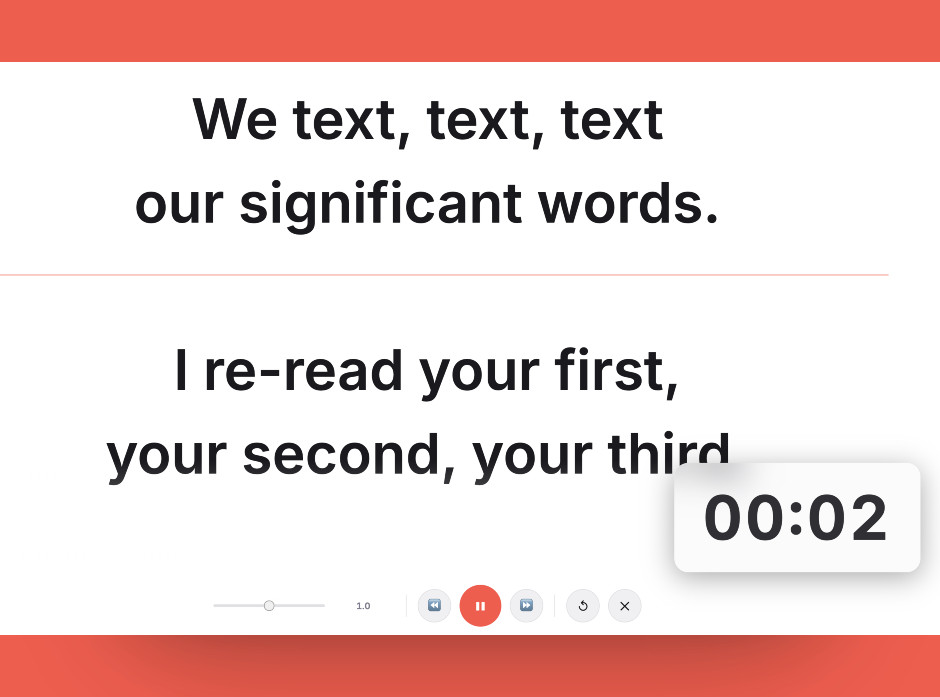
If you've ever led a Zoom meeting, presented on Teams, or hosted a webinar, you know the pressure. You want to sound confident and natural—but you also don't want to forget what you planned to say.
So what do most people do? They keep scripts or notes nearby… then constantly glance down at them. Suddenly your eye contact disappears, and it becomes obvious you're reading.
The good news is that there's a simple solution: scrolling your script in a way that keeps your eyes near the camera. It's a technique used by broadcasters and presenters all the time—and you can easily do it during Zoom calls, Teams meetings, or webinars.
Let's walk through how to do it.
Why Scripts Make Zoom and Webinar Presentations Better
Some people think scripts make presentations sound robotic. In reality, the opposite is often true.
A good script helps you:
- Stay focused during a Zoom or Teams meeting
- Avoid rambling during a webinar
- Reduce filler words like "um" or "uh"
- Deliver your message clearly
Even experienced presenters use scripts. The key is simply learning how to scroll through your script naturally while speaking.
The Easiest Way to Scroll Scripts During a Zoom or Teams Meeting
A simple way to manage your presentation scripts is with ScriptScroller.
ScriptScroller.com lets you paste your script into a clean browser window and scroll through it smoothly while you present. Because it runs in your browser, you can keep it open right alongside Zoom, Teams, or your webinar platform.
It's especially useful when you want to:
- Scroll through long webinar scripts
- Keep meeting talking points organized
- Read presentation scripts without losing your place
Instead of juggling notes or switching between windows, you just scroll through your script while speaking.
The Secret to Reading Scripts Without Looking Like You're Reading
The trick isn't just having a script—it's how you position and scroll it.
-
1
Look at the Camera, Not the Screen
When you're presenting on Zoom or Teams, it's tempting to look at the people on your screen. But your audience only feels eye contact when you look at the camera lens. So when you scroll through your script, try to keep your eyes as close to the camera as possible.
-
2
Keep Your Script Narrow
If your script stretches across the whole screen, your eyes will move left and right while reading. That's a giveaway. Instead: increase the font size, keep the script in a narrow column, and place it directly under your webcam. Now when you read and scroll, your eyes only move slightly downward—something viewers rarely notice.
-
3
Scroll Slowly and Naturally
When presenting in a Zoom meeting or webinar, you don't want to rush through your script. Scroll at the same pace you speak. That way your script always stays just ahead of where you are in the presentation. Using ScriptScroller.com makes this easy because the interface is simple and distraction-free.
-
4
Use the "Invisible Scroll" Trick
If your hands move into the frame every time you scroll, viewers might notice you're reading. Instead: use a mouse below the camera frame, scroll quietly while speaking, and keep your hands mostly out of view. This allows you to scroll your scripts naturally during a Zoom call, Teams meeting, or webinar.
Pro tip: Practice makes your scripts sound natural. Run through your script a few times before your meeting or webinar so you know where the key points are, which phrases need emphasis, and when to pause.
Frequently Asked Questions
Many presenters look for a Zoom teleprompter so they can read scripts without losing eye contact. A browser-based tool like ScriptScroller works well because it lets you paste your script and scroll it smoothly while presenting on Zoom. Since it runs in your browser, you can keep it open next to your Zoom window and scroll your script naturally as you speak.
The key is positioning and pacing. To scroll a script during a webinar discreetly:
- Keep the script in a narrow column
- Position it directly below your webcam
- Scroll slowly while speaking
- Use a mouse below the camera frame
When done correctly, the audience won't notice you're scrolling through your script.
When presenting in Microsoft Teams, presentation notes should be simple and easy to read. Good Teams presentation notes usually include:
- A clear script or bullet points
- Large font size for easy reading
- A narrow column layout under the camera
- Smooth scrolling as you speak
To read a script on Zoom naturally, follow these steps:
- Place your script directly under your webcam
- Use large, easy-to-read text
- Keep the script in a narrow column
- Scroll slowly while speaking
- Practice your delivery beforehand
These techniques make your eye movement minimal, which helps your presentation look natural even while reading from a script.