Quick answer
| Best term | Both “moving text” and “scrolling text” are commonly used and mean the same core idea here: script text advancing on screen while you speak. |
| Best tool | A browser teleprompter with large type, speed control, and no login friction. |
| Best for | Concerts, spoken delivery, and fewer retakes. |
What “moving text” and “scrolling text” mean
On a concert stage, even short spoken transitions can feel harder than the songs themselves. Moving text gives performers and hosts just enough support to stay smooth between numbers, nail sponsor thank-yous, and keep the audience experience polished.
People search for both “moving text” and “scrolling text,” but in practice they are usually looking for a teleprompter-style reading experience. The text moves at a controlled speed so you do not need to keep manually finding the next line while speaking.
Best use cases
The strongest use cases for concerts usually look like this:
- Concert intros, sponsor mentions, and artist walk-ons
- Lyric cues, spoken links between songs, and encore lines
- Stage host copy for festivals, recitals, and charity concerts
| Situation | Why scrolling text helps |
|---|---|
| Opening lines | Gets you started cleanly instead of improvising and losing confidence. |
| Transitions | Keeps the flow smooth between sections, segments, or scenes. |
| Exact wording | Useful for names, numbers, sponsor mentions, or key phrases that need precision. |
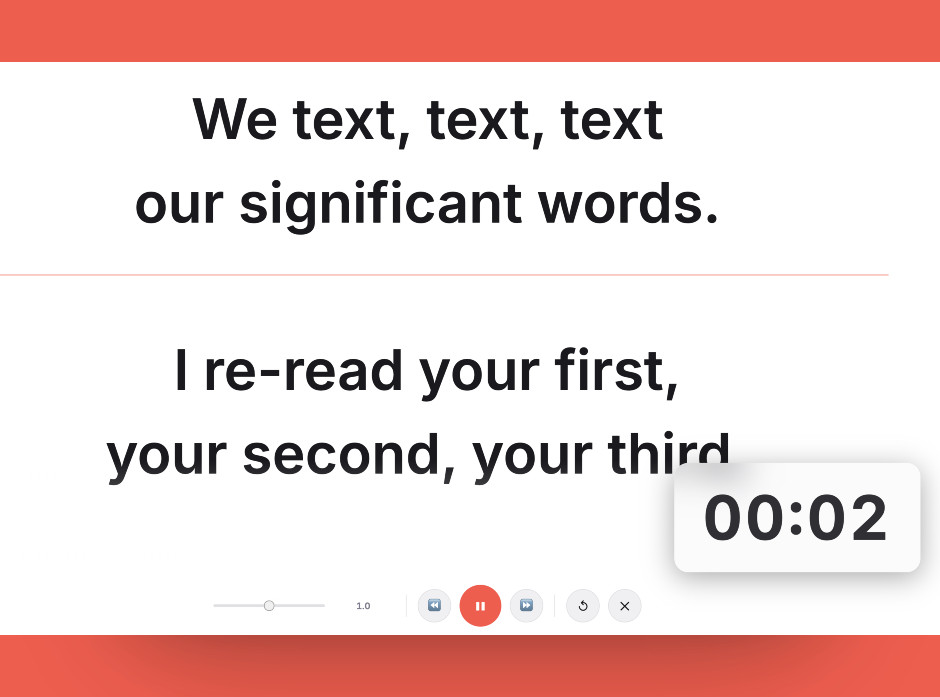
This is the kind of teleprompter layout that works well for concerts: oversized text, clear spacing, and enough visual contrast to read quickly.
How to set it up
The simplest setup is a browser teleprompter on a tablet, floor monitor, or side laptop placed in the natural eyeline of the person speaking. ScriptScroller works well here because speed can be adjusted in real time and the text stays large enough to read quickly under stage lighting.
In most cases, you do not need expensive gear to get started. A browser-based teleprompter, a clean script, and a sensible screen position usually get you most of the benefit right away.
Best practices
What usually works best
- Keep concert copy short and punchy, with one line per idea.
- Mark applause pauses and music cues directly in the text.
- Use larger font sizes than you think you need under bright lights.
It is also worth testing the first thirty seconds out loud before using the full script. That quick rehearsal usually reveals whether the font is too small, the speed is too fast, or the wording still sounds too written.
Try moving text with a free online teleprompter
Open ScriptScroller in your browser, paste your script, adjust the speed, and start reading with cleaner pacing and fewer mistakes.
Frequently asked questions
Can a teleprompter be useful for concerts if the speaker is not reading every word?
What kind of concert content is best for scrolling text?
Does scrolling text make a concert feel less natural?
Why this page exists
- Users often search for both “moving text” and “scrolling text” when they actually need a teleprompter workflow.
- ScriptScroller is a browser-based way to test that workflow quickly without installing dedicated software.