Quick answer
| Best fit | Desk recording, webinars, online presentations, and remote client calls |
| Typical cost | Free with a browser prompter; the only spend is a camera mount or a second display |
| What matters most | Getting the reading line and the webcam into the same part of your field of view |
| Skip it if | You are shooting on a cinema camera across the room, where a desk screen is no help at all |
What this setup is really for
Desktop setups have more screen area than any other prompting situation, and that turns out to be a liability as often as an asset. Given a 27-inch display, most people run the script across the full width and then wonder why they look like they are reading. Wide lines mean long horizontal eye sweeps, and horizontal eye movement is far more visible on camera than vertical scrolling is.
The other desktop-specific issue is that the webcam and the script are usually competing for different parts of the screen. An external webcam clipped to the top of the monitor and a script running in the middle of the display puts a significant gap between where you are looking and where the lens is. Closing that gap costs nothing: move the prompt window up under the camera and narrow it.
Windows and macOS differ very little here. What does differ is how you keep the prompter visible while presenting. On both platforms a browser prompter in a small always-on-top window near the webcam beats a full-screen prompter you have to alt-tab away from, particularly when you are also sharing a screen.
Where it fits — and where it does not
Works well for
- Webinars and online presentations where you are also sharing slides
- Recorded desk pieces on an external webcam or capture card
- Client and sales calls that need talking points without an obvious read
- Anyone with a second monitor available to dedicate to the script
Struggles with
- Full-width scripts on large or ultrawide monitors, where eye sweep becomes obvious
- Setups where the camera is mounted far from the prompt window
- Shooting into a separate camera positioned away from the desk
What to check before you buy
| Camera position | Directly above the display, centred, at or slightly above eye height |
| Prompt window | Small, narrow, and parked immediately under the camera |
| Line width | Roughly 40 to 55 characters regardless of how wide the monitor is |
| Monitor height | Raise the display so the top of the screen is around eye level |
| Second screen | Useful, but only if it sits near the camera — a side monitor makes the eye line worse |
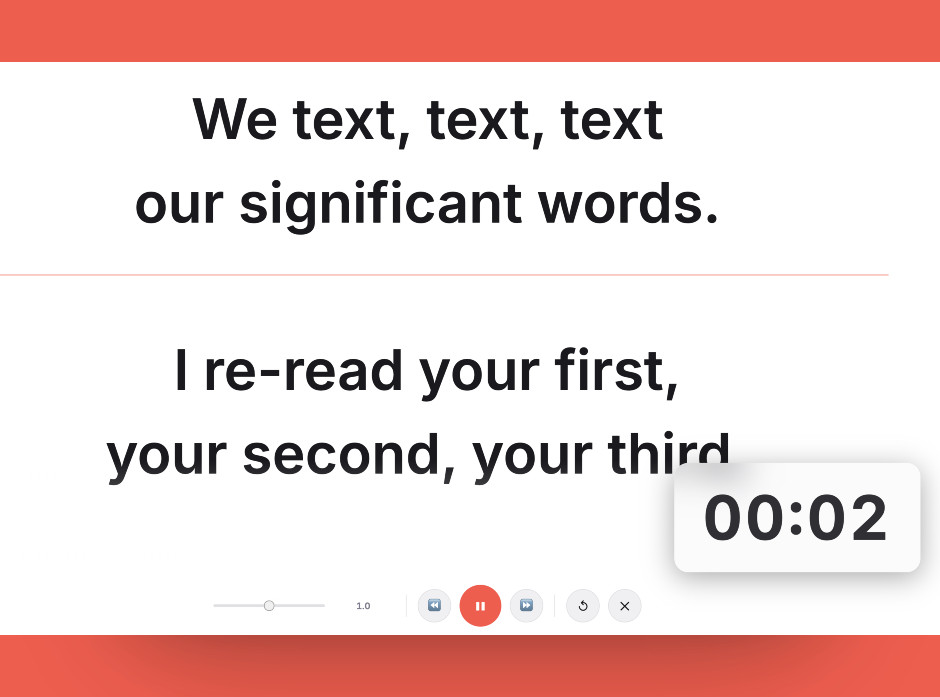
A small prompt window parked directly under the webcam beats a full-screen prompter on a large monitor every time.
Setting it up
- Raise the monitor and centre the camera
Get the top of the display to roughly eye height and clip the webcam centred above it. A camera off to one side guarantees an off-axis gaze no matter what you do with the script.
- Open the prompter in a small window
Do not run it full screen. A compact window sitting directly beneath the webcam keeps your eye line within a few degrees of the lens.
- Narrow the text column
Constrain the reading column to around 40 to 55 characters. On a wide desktop monitor this is the single highest-impact change available.
- Decide what the second monitor is for
If you have two screens, give one the script and the other your slides or notes, and keep the script screen the one nearest the camera. Bouncing between two distant screens is worse than having one.
- Test-record before the real thing
Record thirty seconds and watch your eyes. If they visibly track, the window is too wide or too far from the camera.
Common mistakes
A full-screen script on a large monitor spreads your reading across the whole display and makes every eye movement visible. Small window, near the camera.
A script on a monitor to your left means you spend the whole recording looking to your left. Keep the script on the screen closest to the lens.
A low monitor forces a downward gaze into the camera and a further downward gaze to the script. Raising the display fixes both at once.
Frequently asked questions
Do I need teleprompter software on Windows or Mac?
Should the script go on my second monitor?
How wide should the prompt window be on a big monitor?
Where should I put the webcam relative to the script?
Can I run a teleprompter while screen sharing?
Test the workflow before buying more gear
Open the ScriptScroller browser teleprompter, put it where your script would actually sit, and find out which of these problems you really have.
Open Teleprompter