Quick answer
| Best fit | Desk recording and presenting on an existing ultrawide or curved display |
| Typical cost | Free — this is entirely a configuration problem |
| What matters most | Constraining the script to a narrow central column |
| Skip it if | You already run a narrow prompt window, in which case the panel width is irrelevant |
What this setup is really for
Ultrawide monitors are the worst-case default for teleprompting because the obvious thing to do — let the script fill the screen — is exactly wrong. A line stretching across an ultrawide can be well over a foot of physical travel for your eyes, and that sweep is the single most visible sign of reading on camera.
The fix is to treat the extra width as space around the script rather than space for the script. Constrain the reading column to roughly 40 to 55 characters, centre it under the webcam, and leave the rest of the panel empty or holding something else. The panel being wide should change nothing about the script itself.
Curvature is a smaller factor and cuts both ways. A curve keeps the far edges of a wide panel more evenly angled toward you, which is helpful in general. It is irrelevant to a narrow central column, since a narrow column never reaches the curved portion of the screen in the first place.
Where it fits — and where it does not
Works well for
- Desk-based recording and presenting on hardware you already own
- Multitasking setups where slides, notes, and the script coexist on one panel
- Webinar hosting that needs the script plus a visible audience or chat
- Anyone who already has an ultrawide and does not want a second monitor
Struggles with
- Full-width scripts, which produce very large and very visible eye sweeps
- Prompt windows parked at the far left or right of the panel
- Setups where the webcam is not centred over the reading column
What to check before you buy
| Reading column | Roughly 40 to 55 characters, regardless of the panel width |
| Column position | Centred horizontally under the webcam, high on the screen |
| Remaining space | Use it for slides, notes, or chat — not for widening the script |
| Curvature | Helpful for wide layouts generally, irrelevant to a narrow central column |
| Camera | Centre it over the reading column, not over the middle of a very wide panel by accident |
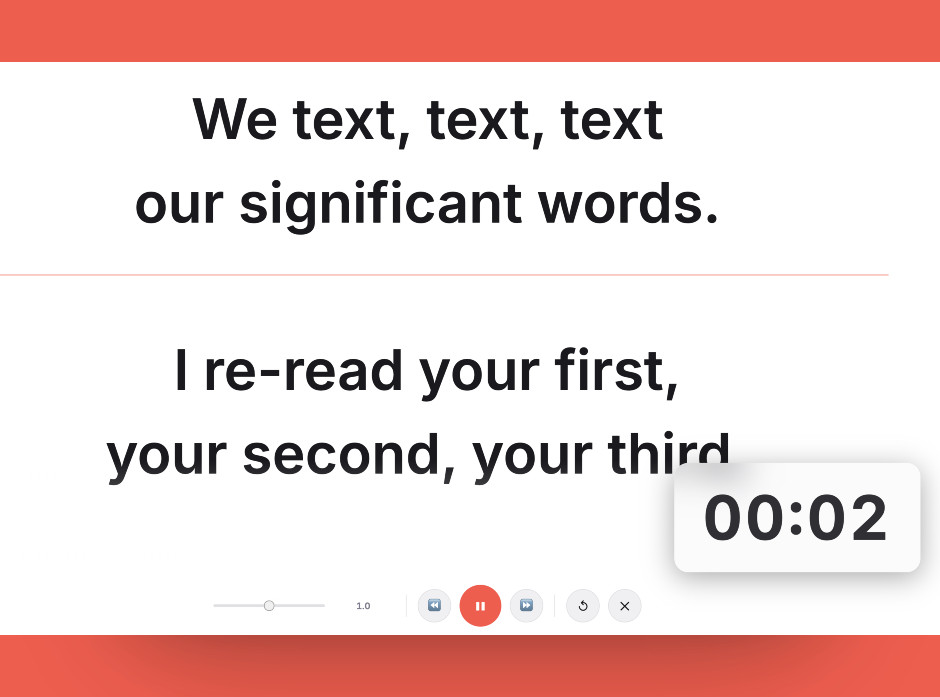
A narrow reading column centred under the camera, with the rest of the ultrawide left for everything else.
Setting it up
- Centre the webcam over the reading position
On a very wide panel the physical centre and the position you actually want the camera can differ. Put the camera where the script is going to be.
- Constrain the prompt window
Resize the prompter to a narrow column of about 40 to 55 characters. Do not maximise it. This is the entire lesson of this page.
- Put the column high and centred
Move it up under the camera. On an ultrawide, a script in the lower middle of the panel is both far below the lens and easy to lose track of.
- Give the leftover space a job
Park slides, notes, chat, or your meeting window either side. Filled space stops you from unconsciously widening the script to use it.
- Check a test recording for eye sweep
Record thirty seconds and watch your eyes. Any visible left-to-right tracking means the column is still too wide.
Common mistakes
A full-width script on an ultrawide is the worst possible configuration. It maximises exactly the eye movement that gives reading away.
A prompt window on the left third of the panel means looking left for the entire recording, which is more obvious than looking slightly down.
Curvature helps with wide layouts in general but does nothing for a teleprompter, because a correctly sized reading column never reaches the curved edges.
Frequently asked questions
How wide should the script be on an ultrawide monitor?
Does a curved monitor help with teleprompting?
Where should the prompt window sit on a very wide screen?
What should I do with the rest of the screen?
Is an ultrawide worse than a normal monitor for teleprompting?
Test the workflow before buying more gear
Open the ScriptScroller browser teleprompter, put it where your script would actually sit, and find out which of these problems you really have.
Open Teleprompter