Quick answer
| Best term | Both “moving text” and “scrolling text” are commonly used and mean the same core idea here: script text advancing on screen while you speak. |
| Best tool | A browser teleprompter with large type, speed control, and no login friction. |
| Best for | OBS workflows, spoken delivery, and fewer retakes. |
What “moving text” and “scrolling text” mean
In OBS setups, the challenge is not only remembering the script. It is keeping your workflow clean while switching scenes, monitoring chat, and speaking naturally. Scrolling text lets you keep structure nearby without loading your main capture with visible notes.
People search for both “moving text” and “scrolling text,” but in practice they are usually looking for a teleprompter-style reading experience. The text moves at a controlled speed so you do not need to keep manually finding the next line while speaking.
Best use cases
The strongest use cases for OBS workflows usually look like this:
- Stream intros, sponsored reads, and scene transitions
- Training recordings and webinar moderation
- Live commentary, creator segments, and scripted announcements
| Situation | Why scrolling text helps |
|---|---|
| Opening lines | Gets you started cleanly instead of improvising and losing confidence. |
| Transitions | Keeps the flow smooth between sections, segments, or scenes. |
| Exact wording | Useful for names, numbers, sponsor mentions, or key phrases that need precision. |
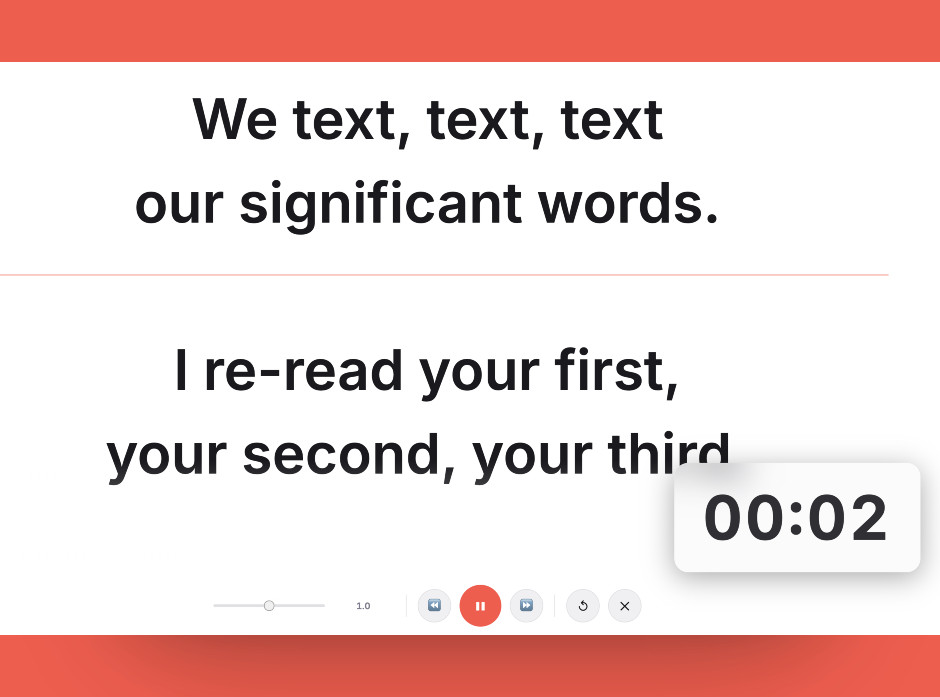
This is the kind of teleprompter layout that works well for OBS workflows: oversized text, clear spacing, and enough visual contrast to read quickly.
How to set it up
Most OBS creators use a second display, tablet, or phone for prompting. If you only have one monitor, place the teleprompter window close to your preview or camera window and simplify the script so you can glance fast without losing the stream rhythm.
In most cases, you do not need expensive gear to get started. A browser-based teleprompter, a clean script, and a sensible screen position usually get you most of the benefit right away.
Best practices
What usually works best
- Keep OBS scene notes and teleprompter text separate.
- Use wider margins so the next line is easier to catch during live delivery.
- Build obvious pause markers where chat interaction or scene switches happen.
It is also worth testing the first thirty seconds out loud before using the full script. That quick rehearsal usually reveals whether the font is too small, the speed is too fast, or the wording still sounds too written.
Try moving text with a free online teleprompter
Open ScriptScroller in your browser, paste your script, adjust the speed, and start reading with cleaner pacing and fewer mistakes.
Frequently asked questions
Can I use scrolling text while streaming with OBS?
Will the audience see the script in OBS?
What is the biggest mistake in an OBS teleprompter setup?
Why this page exists
- Users often search for both “moving text” and “scrolling text” when they actually need a teleprompter workflow.
- ScriptScroller is a browser-based way to test that workflow quickly without installing dedicated software.