Quick answer
| What it is | Teleprompter software that scrolls your script on the same screen as your webcam, with no beam-splitter glass |
| Best for | Zoom, Teams and Google Meet, webinars, YouTube and course recording |
| Cost | Free in the browser with ScriptScroller. No download or signup |
| Trade-off | Your eyes sit slightly below the lens rather than through it, so placement matters |
Open the free online teleprompter
Paste your script and press play. No download, no signup.
Start teleprompterWhat to know first
A traditional teleprompter reflects text onto angled glass in front of the camera lens, so the speaker reads straight through the lens. A virtual teleprompter skips the hardware. The script scrolls in a window on your screen, as close to the webcam as possible.
For video calls and desk recordings, that is usually all you need. A webcam sits a few millimetres above the top of the display. A narrow prompt window just below it puts your reading line within a few degrees of the lens. Viewers on a call can’t tell the difference.
The main limitation is distance. On a large monitor, or with a webcam clipped far from where the text sits, the gap becomes visible. That’s when a physical glass rig with mirror mode starts to pay for itself.
Where it fits and where it doesn’t
Works well for
- Zoom, Microsoft Teams and Google Meet presentations
- Webinars and sales demos where you also share slides
- YouTube, course and talking-head videos recorded at a desk
- Interviews and pitches where you want key points in view
Struggles with
- Cameras placed away from the screen, such as a DSLR across the room
- Very large or ultrawide monitors with the script spread across the full width
Checklist
| Webcam position | Centred above the screen you read from, at about eye height |
| Prompt window | Narrow (about 40–55 characters per line) and touching the top edge, right under the camera |
| Screen sharing | Share a single app window, not your whole screen, so the script stays private |
| Distance | Sit back at arm’s length or more. Further away means less visible eye movement |
| Upgrade path | If the gap is still visible, a glass rig plus mirror mode puts the text directly over the lens |
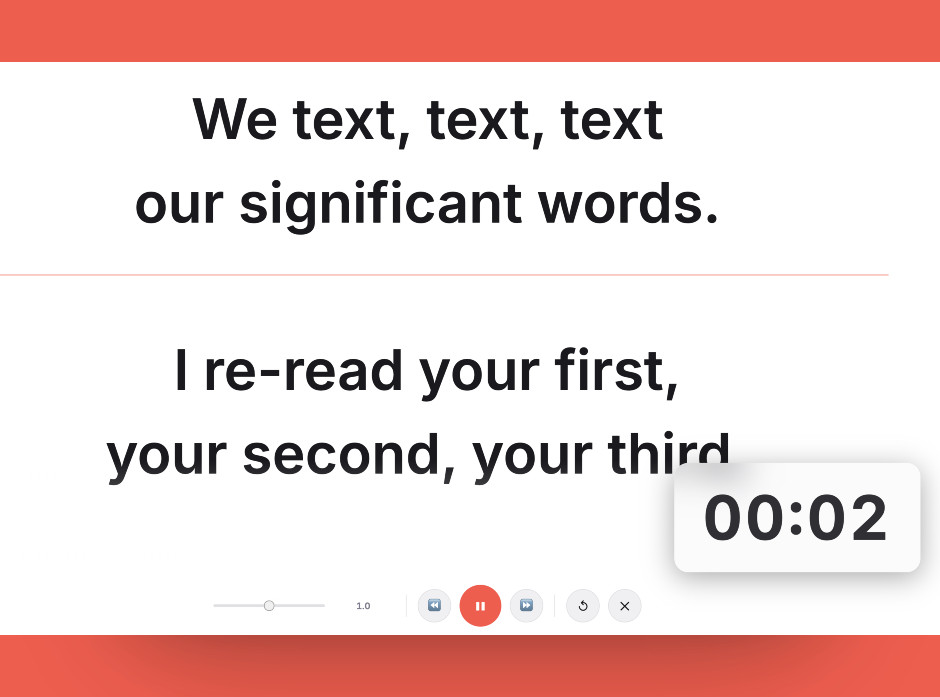
Keep the script in a narrow window right under the camera. That’s the single biggest factor in looking natural.
Setting it up
- Open the teleprompter in your browser
Go to scriptscroller.com and paste or upload your script. There’s no install and no account.
- Park it under the webcam
Resize the window so it’s narrow and touches the top of the screen directly beneath the camera.
- Join your call or start recording
Open Zoom, Teams, Meet or your recorder behind the teleprompter. If you share your screen, share a single window.
- Control the scroll
Space pauses and resumes. The up and down arrows change speed. Left and right jump back or forward.
- Do a test take
Record 30 seconds and watch it back. If your eyes visibly scan, narrow the window or sit further back.
Common mistakes
The further the text is from the webcam, the more obviously you are looking down. Keep it at the top edge.
Your audience will see the script. Share one app window or one slide deck instead.
A virtual teleprompter works best with bullet points or a conversational script, so you sound like you are speaking, not reading.
Frequently asked questions
What is a virtual teleprompter?
How do I use a virtual teleprompter on Zoom?
Can people see my virtual teleprompter during a video call?
Is a virtual teleprompter as good as a real one?
Is there a free virtual teleprompter?
Try it free in your browser
Open ScriptScroller, paste your script, put the window where it will actually sit and do a test take. It takes about a minute.
Open Teleprompter