Quick answer
| Works on | Windows 10 and Windows 11, in Chrome, Edge, Firefox or Brave |
| Cost | Free. No download, no account, no watermark |
| What matters most | Keeping the script in a narrow window right under the webcam |
| Records video? | Use the built-in Camera app, Teams, Zoom or OBS. The teleprompter runs alongside them |
Open the free online teleprompter
Paste your script and press play. No download, no signup.
Start teleprompterWhat to know first
Most people searching for a teleprompter app for Windows expect to download something. You don’t need to. A browser teleprompter runs the same on any Windows laptop or desktop, updates itself and doesn’t need admin rights. That matters on work laptops where you can’t install software.
What Windows does change is window management. You will usually have the teleprompter open next to Teams, Zoom, PowerPoint or a recording app. You need to keep the script visible and close to the camera while those apps compete for the screen.
The fix is the same on every Windows machine: a small prompter window, snapped to the top-centre of the screen under the webcam, with a narrow text column. The steps below cover the Windows-specific shortcuts that get you there.
Where it fits and where it doesn’t
Works well for
- Teams and Zoom calls on a work laptop where installs are blocked
- Recording with the Windows Camera app, OBS or Clipchamp
- Presenting PowerPoint while reading talking points
- Dual-monitor desks with the webcam on the main display
Struggles with
- Locked-down browsers that block JavaScript
- Side-mounted webcams far from any screen
- Teams of operators who need a separate controller screen
Checklist
| Browser | Chrome or Edge, updated. Both handle smooth scrolling well |
| Webcam | Centred above the screen you will read from |
| Window | Snap the prompter to the top of the screen. Windows 11: Win + Z opens Snap layouts |
| Always on top | Windows has no built-in pin. Microsoft PowerToys adds one (Win + Ctrl + T) |
| Display scaling | At 125–150% scaling, raise the font size rather than zooming the page |
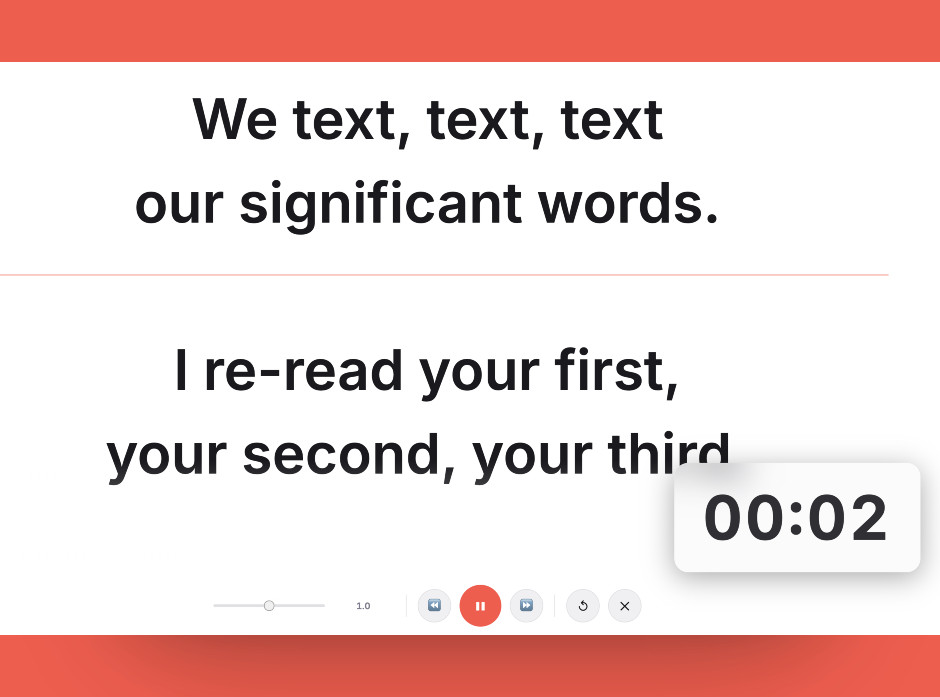
Keep the script in a narrow window right under the camera. That’s the single biggest factor in looking natural.
Setting it up
- Open ScriptScroller in Chrome or Edge
Paste your script or upload a .txt or .docx file. There’s no account or install step.
- Snap the window under your webcam
Drag the window to the top of the screen or use Win + Z on Windows 11. Make it narrow, about a third of the screen width, so your eyes barely move.
- Pin it on top if you share your screen
With PowerToys installed, Win + Ctrl + T keeps the teleprompter above Teams, Zoom or PowerPoint. Share the specific app window, not the whole screen.
- Set speed and size
Space pauses and resumes. The up and down arrows change speed. Left and right jump back or forward. Esc leaves the prompter.
- Record a 30-second test
Open the Camera app (or your call app), read a paragraph and watch your eyes. If they visibly sweep side to side, narrow the window.
Common mistakes
A full-screen script on a 24-inch monitor turns every line into a visible eye sweep. Keep the window small and near the camera.
Your eyes and the lens end up on different screens. Read from the screen the webcam sits on.
Pin the window on top or put it on its own snap zone so it never disappears behind the meeting window.
Frequently asked questions
Is there a free teleprompter app for Windows?
Can I use a teleprompter during a Teams or Zoom call on Windows?
How do I keep the teleprompter window on top in Windows?
How do I record myself with a teleprompter on Windows?
Does it work on a Windows laptop with a touchscreen?
Try it free in your browser
Open ScriptScroller, paste your script, put the window where it will actually sit and do a test take. It takes about a minute.
Open Teleprompter